5-minute tour
Draw a Nassi–Shneiderman diagram that sums an array and takes the average, starting from an empty document. The keyboard alone or the mouse alone is enough. In the key tables the left column is the Vim key, the right one the standard key and the mouse. Use whichever your hands know.
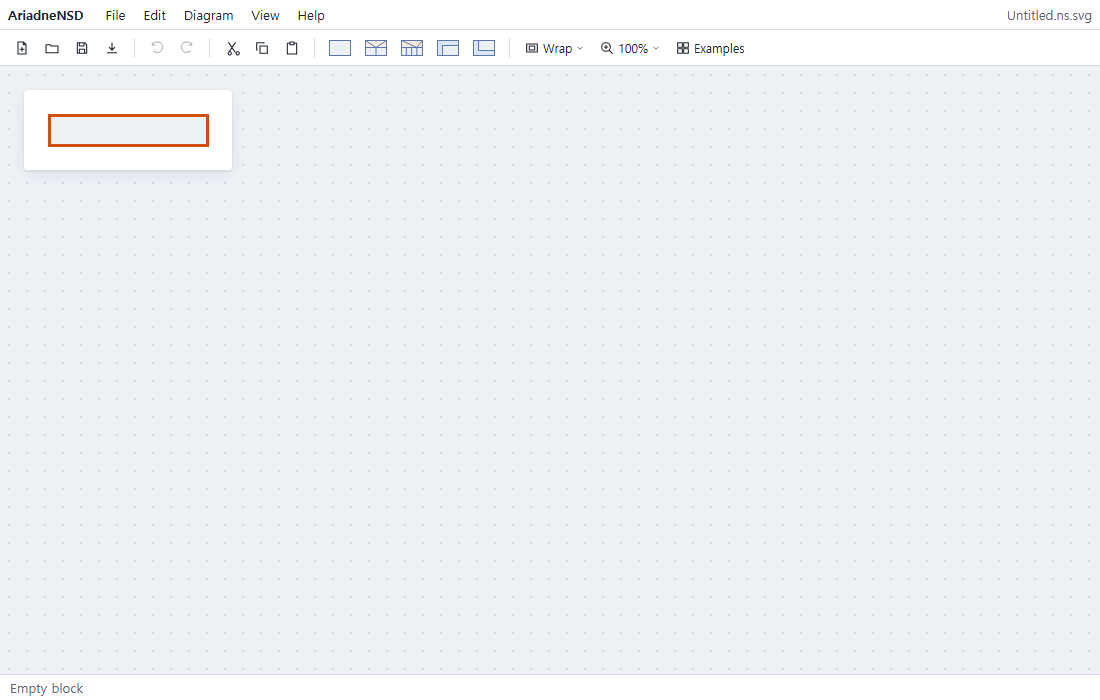
Open the app and you see a new document with one empty block selected. The menus and the toolbar are on top; the status bar at the bottom tells you what is selected.
1Write the first block
To write text in the selected block, press Enter to start editing. When you are done, press Enter again to finish editing. Esc finishes editing too.
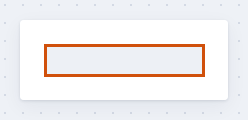
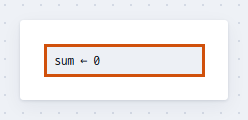
sum ← 0| To | Vim key | Standard key · mouse |
|---|---|---|
| Start editing | i (cursor at the start), cc (clear and write) | Enter, F2, double-click |
| Finish editing | Esc | Enter |
| New line inside a block | Shift+Enter |
While a block is selected, letter keys are commands, not text (as in Vim). Start editing first to write.
2Insert more blocks
A new block goes right after the selected one. Inserting a process block starts editing
at once, so just type; no need to press Enter first. After you write it and
press Enter, the block stays selected, so insert again to write the next one.
Write i ← 0, sum ← sum + a[i] and i ← i + 1 this
way. Hold Shift to insert before instead.
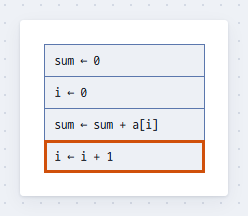
| To | Vim key | Standard key · mouse |
|---|---|---|
| Insert a process block after / before and write | o (or a p) / O (or A p) | The process block icon on the toolbar / Shift+click |
| Move between blocks | j k | ↓ ↑, click |
3Wrap in a While
Put the last two blocks, sum ← sum + a[i] and i ← i + 1, in a
loop.
-
Select both blocks. With
i ← i + 1(the block you just wrote) selected, press Shift+↑ once: the block above joins the selection and the orange frame goes around both. With the mouse, clicksum ← sum + a[i], then Shift+clicki ← i + 1. - Wrap them in a While. Press s, then w. With the mouse, Ctrl+click the While icon on the toolbar.
-
Write the loop condition. Editing starts right away in the While's condition
cell: write
i < nand press Enter.
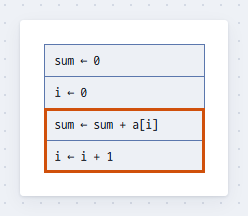
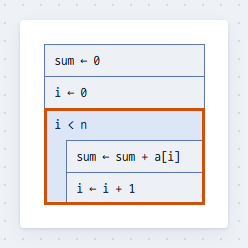
The same, on the whole screen. After s, wait a moment: a hint of the next keys appears just under the selection.
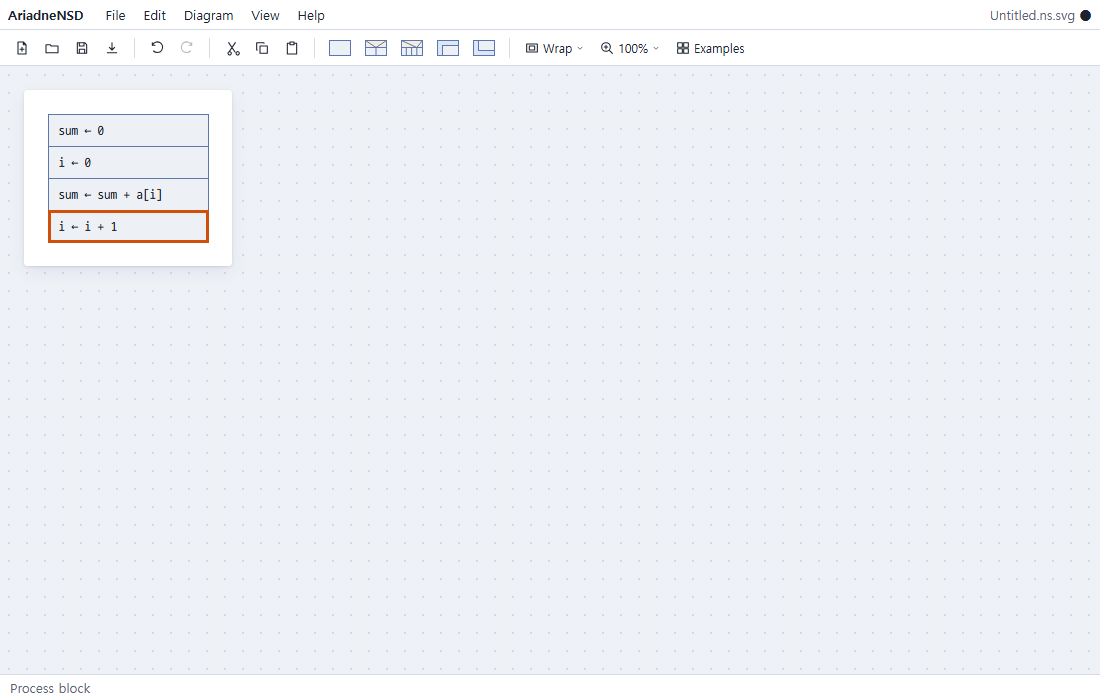
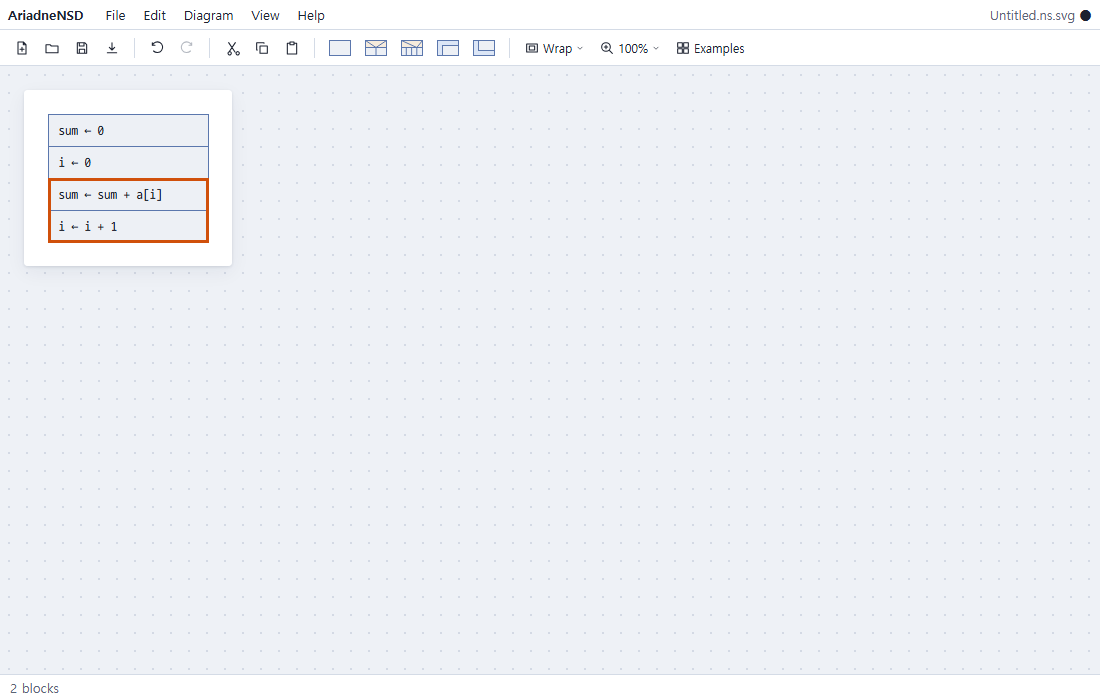
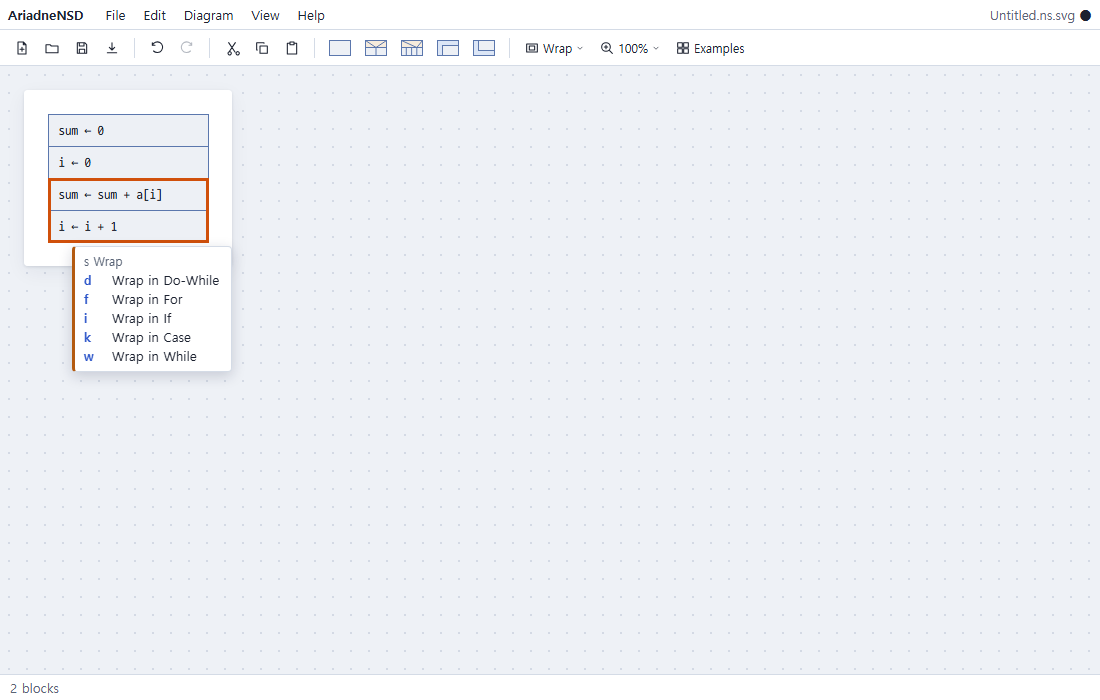
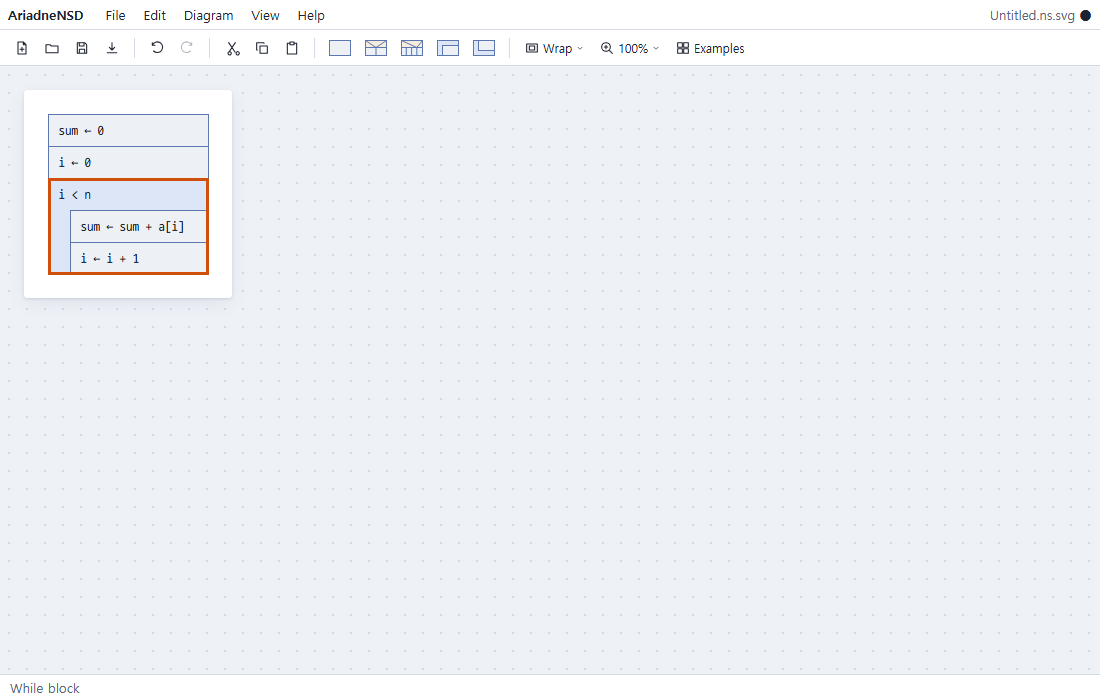
| To | Vim key | Standard key · mouse |
|---|---|---|
| Select several blocks | V, then j k | Shift+↑ ↓, Shift+click |
| Wrap in a While | s w | Ctrl+click the While icon on the toolbar, "Wrap" on the toolbar, or drag and drop the icon on the blocks |
| Wrap in another kind | s + i If · k Case · d Do-While · f For | The same, with that icon |
| Unwrap | ds | The context menu (right-click) |
For two-key commands, press the first key and wait a moment: the keys you can press next appear just under the selected block. No need to memorize them.
4Insert an If
Insert an If after the loop and write its condition in its condition cell. Then go down
into the empty block of the true branch and write the average. The ∅ in the
false branch means "nothing here".
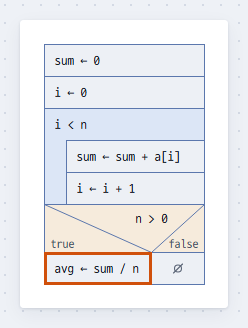
n > 0, the average in the true branch| To | Vim key | Standard key · mouse |
|---|---|---|
| Insert an If after / before | a i / A i | The If icon on the toolbar / Shift+click |
| Insert other blocks | a + k Case · w While · d Do-While · f For · c Call | That icon on the toolbar |
| Into a branch / to the next branch | j / l h | ↓ / → ←, click |
5Save
Saving writes a .ns.svg file. The file is a picture in itself, so browsers,
GitHub and documents show it as is, and AriadneNSD opens it again for editing.
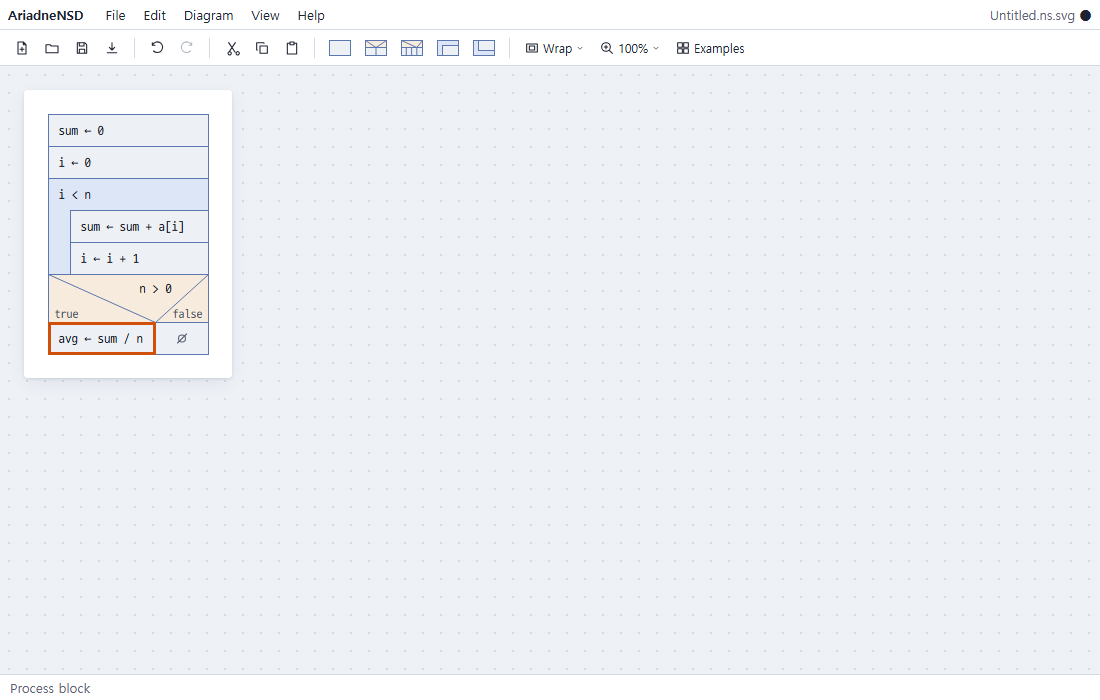
The dot (●) next to the file name at the top right means there are unsaved
changes.
| To | Vim key | Standard key · mouse |
|---|---|---|
| Save / Save As | Ctrl+S / Ctrl+Shift+S, the save icon on the toolbar | |
| Undo / Redo | u / U | Ctrl+Z / Ctrl+Y |
| See every key | ? | Help › Keyboard Shortcuts |
The first save asks where: a file on this computer, or this browser. In Chrome and Edge, a file saved once is then saved automatically. In Firefox and Safari, each save of a file downloads it; a document saved in this browser is saved automatically in every browser. Unsaved work is also kept in the browser as a local backup: when you open the page again, it asks whether to restore it.
The screen
- Menu bar: File · Edit · Diagram · View · Help. Every command is here, with its key next to it if it has one.
- Toolbar: New · Open · Save · Export, Undo · Redo, Cut · Copy · Paste, five block icons (Process · If · Case · While · Do-While), Wrap, Zoom, Examples.
- Canvas: where you draw. Several diagrams are laid out automatically.
-
Status bar: what is selected, and messages. The
●next to the file name at the top right means unsaved changes.
Blocks
Write anything in a block: code or plain sentences. The condition of an If, a Case or a loop
goes in its condition cell (at the top; at the bottom for a Do-While). Text does not wrap by
itself; break long lines with
Shift+Enter. The ∅ in an empty cell means "nothing here".
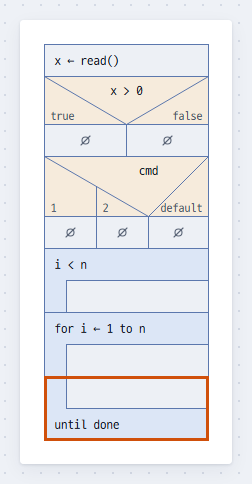
| Block | Meaning | Kind letter |
|---|---|---|
| Process | One step of work | p (insert only: a p = o) |
| If | Two branches, true and false | i |
| Case | Several branches by value; default comes last | k |
| While | Checks the condition first, then repeats | w |
| For | Repeats a set number of times (looks like While; the text in its condition cell tells them apart). Not on the toolbar: use keys or menus | f |
| Do-While | Runs once, then checks the condition | d |
| Call | Calls a Method of the same document | c |
Kind letters follow the insert keys (a A) and the wrap key (s).
Moving around and selecting
Arrow keys move in the order you see in the drawing. Only neighbouring blocks on the same level can be selected together. Shift+click on a block at another depth widens the selection to the nearest range that holds both.
| To | Vim key | Standard key · mouse |
|---|---|---|
| Up · down · left · right | k j h l | ↑ ↓ ← →, click, wheel |
| Up · down, a control block as one piece | { } | Ctrl+↑ ↓ |
| To the next branch | Ctrl+← → | |
| First / last block of the diagram | gg / G | |
| Select several blocks | V, then j k | Shift+↑ ↓, Shift+click |
| Select a branch label | k on the branch's first block | ↑ on the branch's first block, click the label |
| Clear the selection | Esc Esc | Click the empty canvas |
Inserting blocks, editing text
A new block goes after the selection, or before it with Shift. If an empty block
(∅) is selected, the new block takes its place. Editing the text (for a control
block, its condition cell) starts right away. Press Enter or Esc to finish
editing.
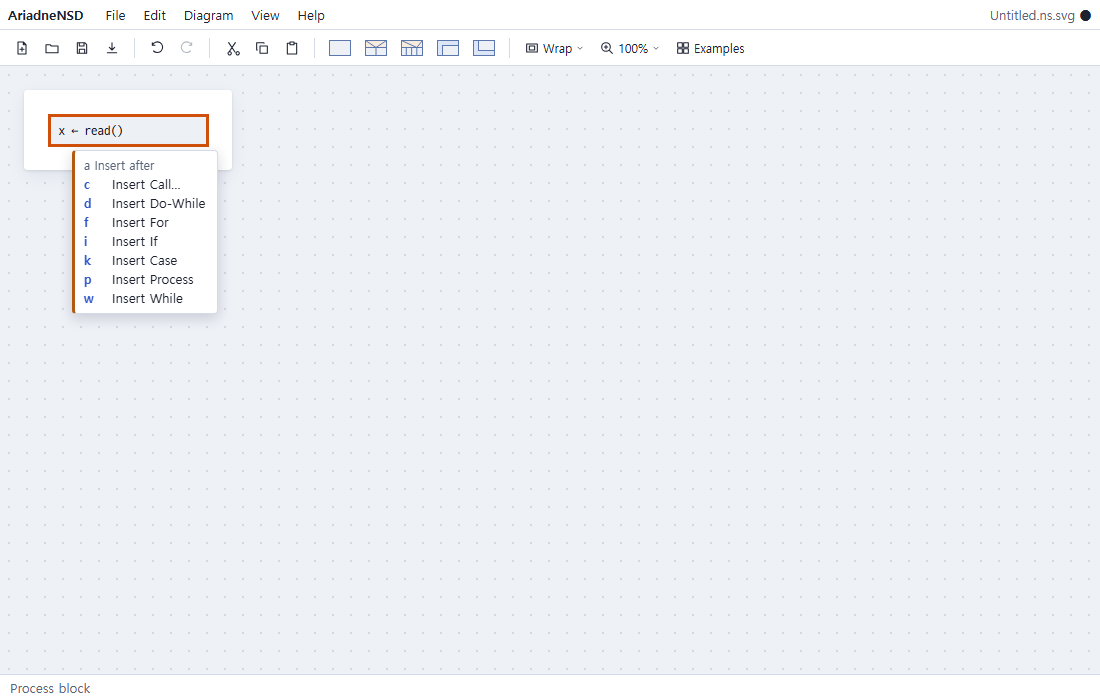
Press a and wait a moment: the next letters appear just under the selection.
| To | Vim key | Standard key · mouse |
|---|---|---|
| A process block after / before | o (or a p) / O (or A p) | The process icon on the toolbar / Shift+click |
| Another block after / before | a / A + kind letter | That icon on the toolbar / Shift+click, or drag and drop the icon between blocks |
| Start editing text | i, cc (clear and write) | Enter, F2, double-click |
| Finish editing | Esc | Enter |
| Call block: result field ↔ argument field | Tab |
Moving, copying, deleting
Moving swaps the selection with the block above or below. Moving past the end takes it out of
the block that holds it. To put it inside another block, drag and drop it there, or cut and
paste. Text copied from another program pastes as one process block per line; if the text is a
whole AriadneNSD document (model JSON or a share link), the app asks whether to open it as a new
document instead (Ask an AI to draw it). Blocks copied into another program
become indented text; a call block reads as drawn, result ← name(arguments).
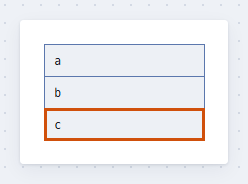
c selected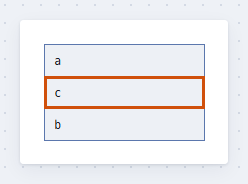
| To | Vim key | Standard key · mouse |
|---|---|---|
| Move up · down (branches left · right) | Alt+k j (h l) | Alt+↑ ↓ (← →), drag and drop the block |
| Copy | yy | Ctrl+C |
| Cut | dd | Ctrl+X |
| Paste after / before | p / P | Ctrl+V (after) |
| Delete (without copying) | x | Delete, Backspace |
Wrapping, unwrapping, inserting branches
Wrapping puts the selected blocks in a new control block (an If's true branch, a Case's first branch). Unwrapping removes the shell and keeps what is inside. Insert and delete a Case's branches like blocks, with its label selected. The default branch always comes last.
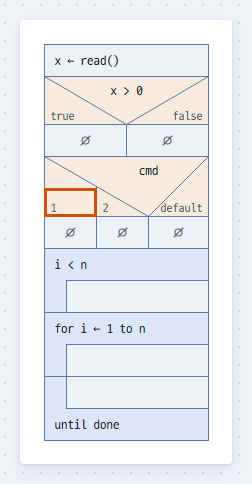
1 selected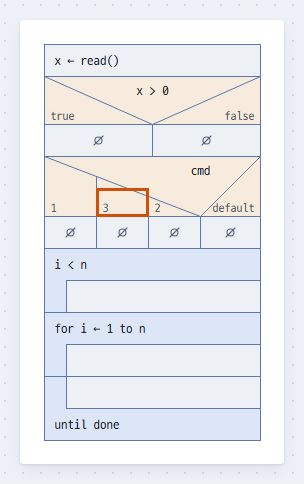
3| To | Vim key | Standard key · mouse |
|---|---|---|
| Wrap | s + kind letter | Ctrl+click a block icon, "Wrap" on the toolbar, or drag and drop the icon on the blocks |
| Unwrap (the nearest control block around the selection) | ds | The context menu |
| Insert a branch after / before (label selected) | o / O | |
| Delete a branch (label selected) | x | Delete |
| Edit a branch label (anywhere in the branch) | L | Double-click the label |
Inserting a branch at an If's label asks whether to turn it into a Case. Swapping an If's true and false branches keeps the condition, so the meaning changes: fix the condition.
Folding
Fold a long diagram to read it. Select a control block and press f (or za): its inside folds into one row "⋯ n blocks". If and Case fold branch by branch; a branch of only one process block does not fold. On a block, the key folds the nearest thing holding it (a fold region, a branch). Select a folded row and press the key again to unfold it.
A fold region groups a few blocks under a name. Select the blocks and press zf: they are grouped, folded at once, and you are asked for a name. Just press Enter and "the first block's text and n more" shows as its name. Unfolded, a thick border and a name band show where it ends; turn the bands off with View › Show Fold Regions. What is folded and the names are saved in the file, and the saved drawing looks as on the screen. Folding and unfolding can be undone, one step each.
| What | Vim keys | Standard keys · mouse |
|---|---|---|
| Fold · unfold | za, f | Click the triangle ▸ ▾, double-click a folded row |
| Unfold only / fold only | zo / zc | |
| Make a fold region | zf | Shift+F |
| Remove a fold region (the blocks stay) | zd | Ctrl+Shift+F |
| Rename a fold region (its band or folded cell selected) | i, cc | Enter, double-click |
The arrow keys pass a folded cell or row as one block. From the first block of an unfolded fold region, ↑ selects its name band. A folded thing is moved, copied and deleted whole.
Events, Methods and several diagrams
A document can hold several diagrams. With a header a diagram becomes an Event (something started from outside, like an interrupt or a timer) or a Method (something a call block calls). The layout is automatic: Events on the left, Methods on the right. A call block's name follows the Method's header; each call block has its own arguments and result.
Select blocks and press m: they become a new Method, and a call block calling it is left in their place. Type the new Method's name and press Enter to go back to that call block. In a diagram without a header, m shows a small list to choose "Extract into New Method" or "Add Method Header". One undo puts the blocks back.
Select a call block and press f: the Method's blocks are shown in place (a violet border and band). Only the view changes, so the shown blocks can be selected and copied but not edited. The first time it opens it takes what the Method has folded; after that, folding a fold region, a branch or a loop body here leaves the Method and other call blocks as they are, and folding in the Method leaves this one as it is. Select shown blocks and press zf for a fold region at this call only. ds (unwrap) replaces the call block with a copy of the Method's blocks (the opposite of extracting). To call a function the document does not have, choose "Call by a written name" in the list and type its name. To draw it later, press gd on that call block (or "Make Method"): a Method of that name is made, every call block with that name calls it, and the selection goes to its header. When a Method is deleted, the call blocks that called it keep its name as a call by a written name. To undo a Method altogether, choose "Inline Method and Delete" on a call block or on its header (the context menu or the Diagram menu): every call block calling it becomes a copy of its blocks, the Method is deleted, and one undo takes it all back. A Method that calls itself cannot be inlined this way.
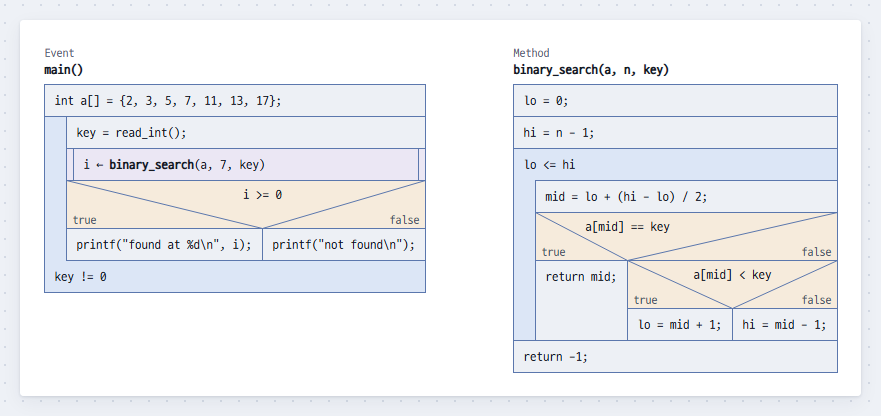
main() calls the Method
binary_search
| To | Vim key | Standard key · mouse |
|---|---|---|
| Add an Event / Method header, or change its kind (m on a header) | e / m | The Diagram menu |
| Extract the selected blocks into a new Method | m | The Diagram menu, the context menu |
| New Event / Method diagram | E / M | The Diagram menu |
| Insert a call block (select the Method from a list) | a c | Context menu › Insert |
| Change the called Method ("Call by a written name" is in this list too) | The Diagram menu, the context menu | |
| Go to the called Method (from a shown block, to its own block; on a call by a written name, make the Method) | gd | The Diagram menu, the context menu |
| Make Method (on a call by a written name) | gd | The Diagram menu, the context menu |
| Open · close a call block in place | f, za | Click the triangle ▾ on its band |
| Replace a call block with the Method's blocks (unwrap) | ds | Diagram › Unwrap |
| Inline Method and Delete (every call becomes the Method's blocks, and the Method goes) | The Diagram menu, the context menu (on a call block or a Method header) | |
| Previous / next diagram | [[ / ]] | Ctrl+Shift+← → |
| Reorder diagrams (header selected) | Alt+h l | Alt+← → |
| Delete a diagram | Shift+Delete |
Choose the header shape ("Like a title" or "Hat · arch") in Diagram › Document Settings. The shape you chose last is remembered. "Language of drawn labels" in the same place is the language of the words the editor draws (an If's "true" · "false", "⋯ n blocks"). It is set per document and saved in the file, so the drawing looks the same whatever the reader's screen language. A new document starts in your screen language.
"Block text language" at the top of Document Settings colors the block text as code: keywords, strings and numbers, and comments each get their own color. Choose Plain text (no colors), C, C++, Java, JavaScript · TypeScript, Python or Bash. Only the colors change; the blocks keep their size and place. Process blocks and conditions are colored; headers, branch labels and calls are not. The saved file and PNG have the same colors. A new document starts as Plain text.
"Result symbol" in Document Settings is the symbol between a call's result and the call (←
or =). It is set per document and saved in the file. Like folding, it is about how
the document is shown, so it is not an undo step. A new document starts with ←.
Theme, high contrast
The theme is the colors of the drawing. Choose it in Diagram › Document Settings › Theme: Light, Dark, High contrast (white lines and text on black) or Black and white print. It is set per document and saved in the file, so the saved picture, PNG and print have the colors you see. Changing it can be undone. The shapes and sizes of the blocks stay the same in every theme.
The menus and toolbar follow your computer's light or dark mode. When your computer asks for more contrast (Windows contrast themes, "Increase contrast" on macOS), they switch to high contrast colors. That does not change the document's theme: choose High contrast for the drawing.
Undo, zoom
Commands that change several places at once, like Wrap, also undo in one step. Up to 500 steps are kept.
| To | Vim key | Standard key · mouse |
|---|---|---|
| Undo / Redo | u / U | Ctrl+Z / Ctrl+Y, Ctrl+R |
| Zoom in / out (10% each) | + / - | Ctrl+wheel (around the mouse), Zoom on the toolbar |
| Back to 100% | The View menu |
Files
AriadneNSD runs in the browser without a server. Your files stay on your computer, or in this
browser if you save them there. A saved .ns.svg is a picture in itself, so it shows
anywhere, and opening it again lets you keep editing.
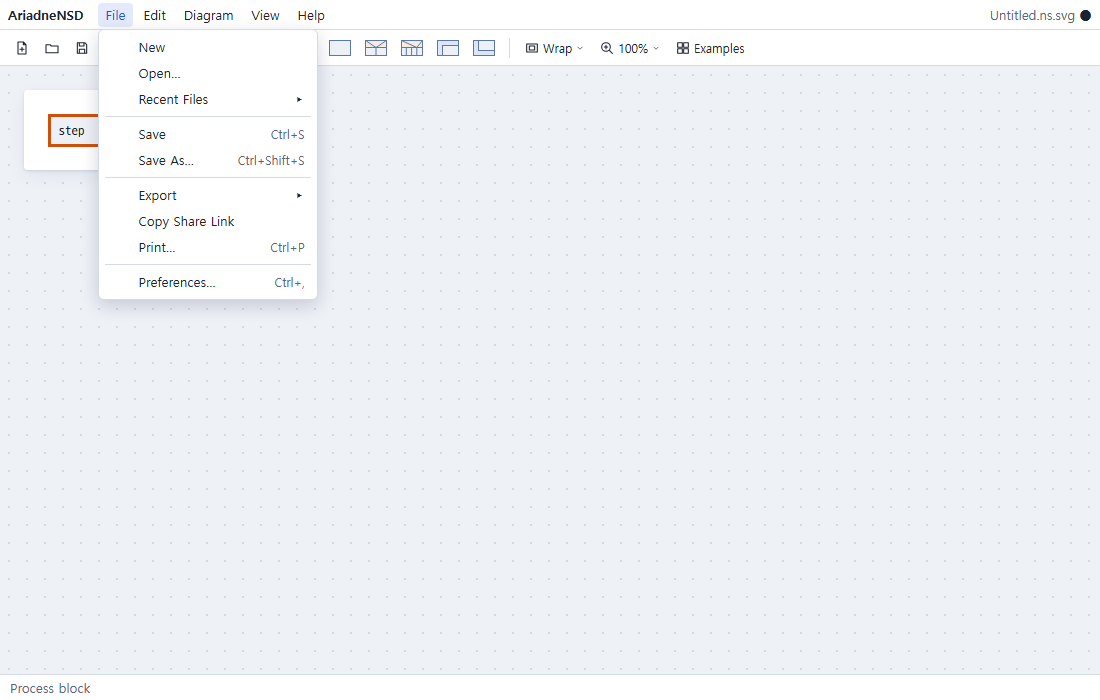
-
Open: the File menu, the toolbar, or drag and drop a file on the page. Opens
.ns.svgand.ns. - Where: File › Open…, Save As… and the first save of a new document ask first: "Files on This Computer" or "This Browser". It opens on the side you used last. On "Files on This Computer" one more button opens your computer's file dialog. ← → switch sides, Esc closes.
- Save: Ctrl+S; Save As is Ctrl+Shift+S. Chrome and Edge write to the original file and save automatically after the first save. Firefox and Safari download the file on each save, and ask for its name on a new document's first save.
- Documents in this browser: on "This Browser", give the document a name and save it without a file. A "Browser" chip then shows next to its name, and Ctrl+S and auto save write there, in every browser. The list shows name, when it was modified and size, newest first: open (double-click or Enter), Rename…, Export to File, and Delete (Delete, it asks first). Save As… moves a document to a file.
-
Keep a copy: documents in this browser are only in this browser. Clearing the browser's
site data deletes them too, so export them now and then: "Export All to Files (.zip)" saves
them all in one zip, and "Import from Files…" brings
.ns.svgfiles or that zip back, also into another browser or computer. - Recent Files: in the File menu, up to ten files you opened or saved. Documents in this browser show "(Browser)".
- Local backup: unsaved work is kept in the browser; when you open the page again, it asks whether to restore it. A document opened from a file keeps its local backup when you open another one; open that file again and it asks whether to restore it.
-
Export: File › Export ▸ PNG, SVG or PDF. Each looks the same as the saved picture.
SVG (Drawing Only) is the saved picture without the model inside: it opens anywhere as
a picture, but not in AriadneNSD, so share it and keep the
.ns.svgfor editing. PDF cuts a large diagram into pages at print size (A4, or Letter in the US and Canada), between blocks where it can, and numbers them. Its text is drawn as shapes, so it cannot be selected, and characters the bundled font lacks (such as Han characters) show as empty boxes; print to PDF from the browser for those. - Print: File › Print… or Ctrl+P. The same pages as the PDF go to the browser's print dialog, with only the diagram on them.
- Text as outlines: Diagram › Document Settings › Save text as outlines. The saved picture draws its text as shapes, so every viewer shows the same glyphs even where fonts in files are not used. The text stays in the document, so you can still edit it; the file is larger.
- A picture changed by another tool: if the drawing in a file was edited in another program (such as Inkscape), opening it says so. AriadneNSD always draws from the model inside, and saving draws the picture again, so changes made only to the drawing are lost.
-
Share link: File › Copy Share Link copies a link with the whole diagram in it. Whoever
opens it sees the diagram in view mode, without menus or toolbar, and can zoom and scroll;
"Edit" turns it into their own new document. Nothing is uploaded: the diagram travels in the
link itself (the part after
#, which browsers do not send to the server). Anyone with the link can read it, so do not share secrets this way. A link longer than 8 KB is copied with a warning (some apps cut long links), and a very large diagram is shared as a file instead. - Open from pasted JSON: File › Open from Pasted JSON… opens the model JSON or a share link pasted into its box as a new document you can edit. It is for what an AI gave you (Ask an AI to draw it).
- New documents: if you edited a new document that was never saved (a new one, or an example) and open another document, it first asks: "… is a new document that has never been saved. Once another document opens, it cannot be brought back. Save it first?" "Save" (Enter) saves and then opens, "Save in Browser" saves it in this browser under its first diagram's name and then opens, "Discard and Open" drops it and opens, and "Cancel" (Esc) opens nothing.
- Examples: "Examples" on the toolbar or Help › Examples… opens ten of them. An example opens as a new document, so feel free to edit it. Examples are written in your screen language. More algorithms, from KMP to Raft, are in the algorithm gallery.
AriadneNSD is not 1.0 yet. Files you save now may not open in later versions.
Ask an AI to draw it
Paste the text below to an AI such as ChatGPT, Gemini or Claude and send it. Only change ○○ to what you want drawn.
Read https://ariadnensd.com/llms.txt, then draw ○○ as a Nassi–Shneiderman diagram and give me the share link and the model JSON.
The AI cannot operate this editor, but it reads the site's guide for AI assistants (llms.txt) and makes a share link with the diagram in it. With the guide's address in the request, an AI that does not open pages follows it too. Help › Ask an AI to Draw opens this part too.
If you use Claude, install the AriadneNSD skill. Then "Explain quicksort as an NS chart" is enough, with no request text, and it can also turn code into diagrams and read or edit diagrams → Claude skill
If the link does not open, copy the JSON the AI gave and paste it into File › Open from Pasted JSON….
- Click the link: the diagram opens in view mode. "Edit" turns it into your own new document.
- Paste the JSON: into the box of File › Open from Pasted JSON…, or right on the editing screen. There the app asks "The pasted text is an AriadneNSD document. Open it as a new document?": "Open as New Document" (Enter) opens it as a new document you can edit, and "Paste as Text" pastes a process block per line as before. A pasted share link works the same.
-
To have the AI change it: after changing it in the app, paste the link from File › Copy
Share Link back to the AI. That link is compressed, so an AI that cannot run code may ask for
the saved file instead: attach the
.ns.svgfile from File › Save. - If the link or the JSON does not open: the app says what was wrong (the reason). Press "Copy Reason" and paste it to the AI that made it to get a fixed one.
The diagram travels in the link itself, so AriadneNSD uploads nothing. What you send to an AI, the link included, follows that AI service's rules.
Claude skill
With the AriadneNSD skill, Claude (claude.ai and Claude Code) makes the diagram itself: it gives
you a saved file (.ns.svg) and a share link, both exactly what this app writes. The
skill checks the diagram with the app's own code, needs no network, and uploads nothing. Ask in
your own words, for example:
- Explain an algorithm: "Explain quicksort as an NS diagram."
-
Draw code (Claude Code): "Draw the function
partitioninsrc/sort.pyas an NS diagram." The file is saved next to the code or indocs/. -
Read or change a diagram: "Explain this diagram and extract the repeated part into a
Method:" and paste a share link or attach a
.ns.svgfile.
On claude.ai: download ariadne-nsd.zip from the
latest release, then upload
it in Settings › Capabilities › Skills. Code execution must be on.
In Claude Code: run these two commands in a session.
/plugin marketplace add reddiana/AriadneNSD
/plugin install ariadne-nsd@ariadne-nsd
What Claude gives opens here: click the link (view mode, then "Edit"), or open the
.ns.svg file with File › Open or drag it onto the page. The file is also an
ordinary picture, so it shows on GitHub and in Markdown. To have Claude change it again, give it
the file or a link from File › Copy Share Link.
Command palette, context menu
If you cannot remember a key, type part of the command's name in the command palette. Each line shows the key that does the same. The context menu shows only the commands for what is selected.
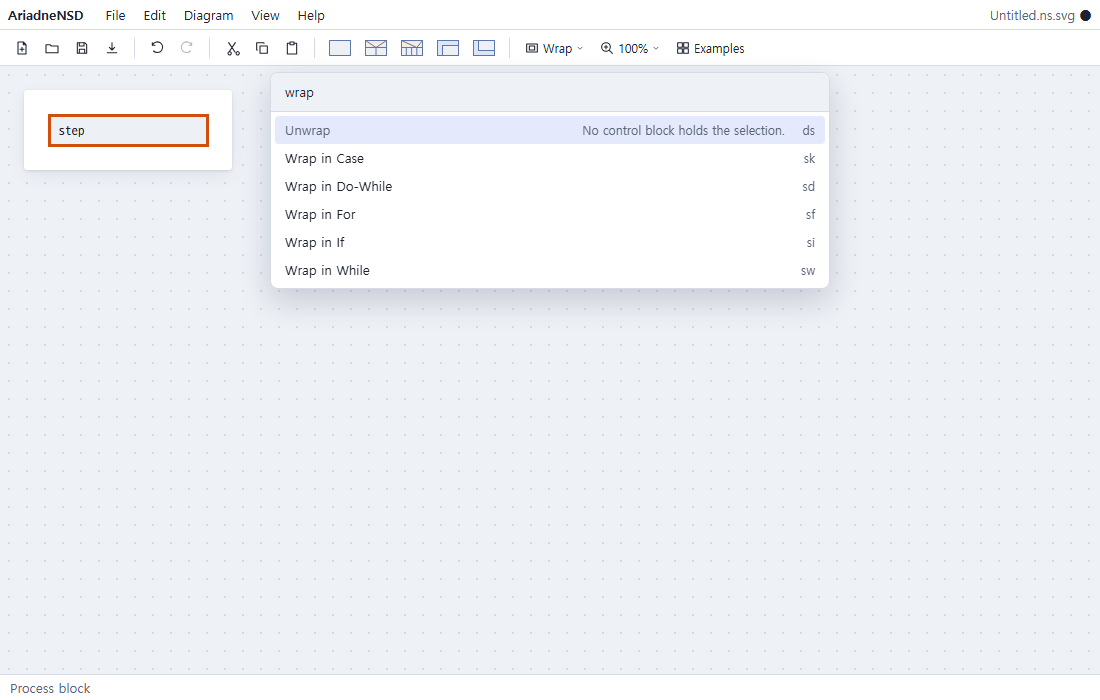
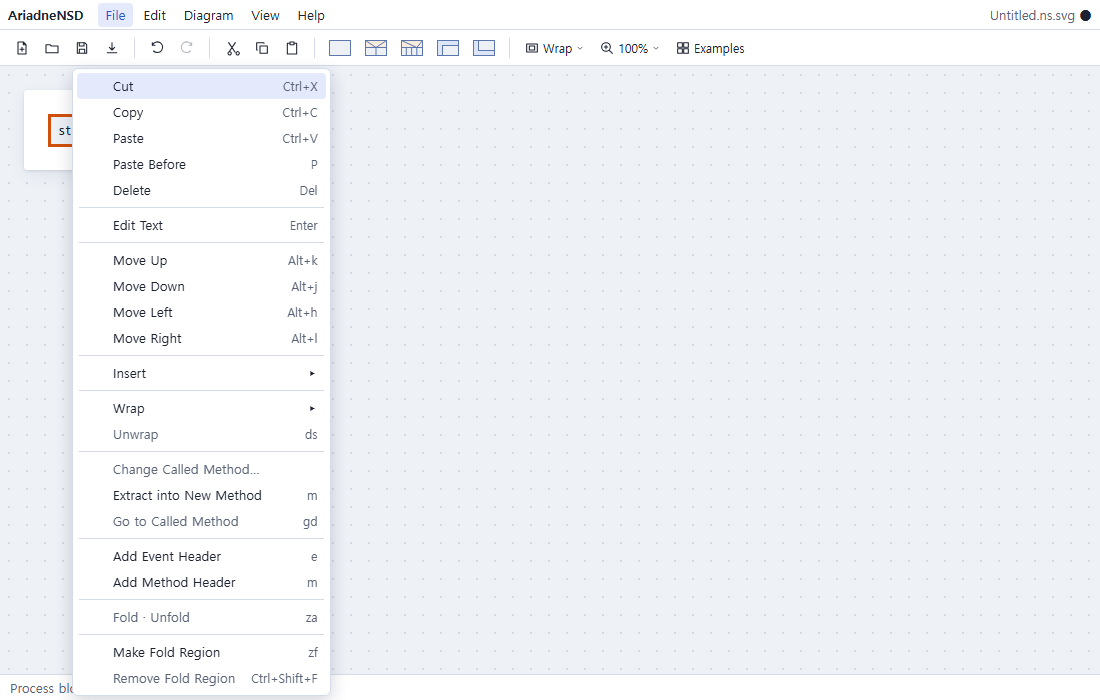
| To | Vim key | Standard key · mouse |
|---|---|---|
| Command palette | Ctrl+Shift+P, F1 | |
| Context menu | Right-click, Shift+F10, the Menu key | |
| Move in the list / run / close | j k | ↓ ↑ / Enter / Esc |
Reporting a problem
If something behaves oddly or a drawing is wrong, please tell us. Say what you did (keys, clicks), what you expected and what happened. Add the version from Help › About AriadneNSD and your browser and OS.
- In public: GitHub issues, where others can see and confirm it.
-
In private: if you would rather not share your diagram, email
report@ariadnensd.com. Attach the.ns.svgonly if you want to.
All shortcuts
The same table that ? shows in the app.
| Command | Vim key | Standard key |
|---|---|---|
| File | ||
| Save | Ctrl+S | |
| Save As… | Ctrl+Shift+S | |
| Print… | Ctrl+P | |
| Preferences… | Ctrl+, | |
| Edit | ||
| Undo | u | Ctrl+Z |
| Redo | U | Ctrl+R, Ctrl+Y, Ctrl+Shift+Z |
| Cut | dd | Ctrl+X |
| Copy | yy | Ctrl+C |
| Paste | p | Ctrl+V |
| Paste Before | P | |
| Delete | x | Del, Backspace |
| Edit Text | Enter, F2 | |
| Move Up | Alt+k, Alt+↑ | |
| Move Down | Alt+j, Alt+↓ | |
| Move Left | Alt+h, Alt+← | |
| Move Right | Alt+l, Alt+→ | |
| Command Palette… | Ctrl+Shift+P, F1 | |
| Diagram | ||
| Insert Process | o, ap | |
| Insert Process Before | O, Ap | |
| Insert If | ai | |
| Insert If Before | Ai | |
| Insert Case | ak | |
| Insert Case Before | Ak | |
| Insert While | aw | |
| Insert While Before | Aw | |
| Insert For | af | |
| Insert For Before | Af | |
| Insert Do-While | ad | |
| Insert Do-While Before | Ad | |
| Insert Call… | ac | |
| Insert Call Before… | Ac | |
| Wrap in If | si | |
| Wrap in Case | sk | |
| Wrap in While | sw | |
| Wrap in For | sf | |
| Wrap in Do-While | sd | |
| Unwrap | ds | |
| Insert Branch | o | |
| Insert Branch Before | O | |
| Delete Branch | x | Del, Backspace |
| Go to Called Method | gd | |
| Add Event Header | e | |
| Add Method Header | m | |
| Remove Header | dd, x | Del, Backspace |
| Extract into New Method | m | |
| New Event Diagram | E | |
| New Method Diagram | M | |
| Delete Diagram | Shift+Del, Shift+Backspace | |
| View | ||
| Zoom In | + | |
| Zoom Out | - | |
| Fold · Unfold | za, f | |
| Make Fold Region | zf, F | |
| Remove Fold Region | zd | Ctrl+Shift+F |
| Help | ||
| Keyboard Shortcuts | ? | |
| Edit Text from the Start | i | |
| Clear and Edit Text | cc | |
| Edit Branch Label | L | |
| Select Left | h | ← |
| Select Down | j | ↓ |
| Select Up | k | ↑ |
| Select Right | l | → |
| Extend Selection Up | Shift+↑ | |
| Extend Selection Down | Shift+↓ | |
| Select the Block Above as a Whole | { | Ctrl+↑ |
| Select the Block Below as a Whole | } | Ctrl+↓ |
| Select the Branch to the Left | Ctrl+← | |
| Select the Branch to the Right | Ctrl+→ | |
| Select the First Block | gg | |
| Select the Last Block | G | |
| Previous Diagram | [[ | Ctrl+Shift+← |
| Next Diagram | ]] | Ctrl+Shift+→ |
| Select a Range | v, V | |
| Clear Selection | Esc Esc | |
| Unfold | zo | |
| Fold | zc | |